Iristick.Teams — IT & Security Brief
A single-page reference for IT administrators and security reviewers. Use your browser's Print → Save as PDF to download this brief as a document you can attach to a ticket or share offline.
The latest online version lives at docs.iristick.com/solutions/teams/it-admin-setup/.
1. What Iristick.Teams Is
Iristick.Teams is an Android and iOS companion app that connects Iristick smart glasses to Microsoft Teams. The user signs in with their existing Microsoft 365 account, and the glasses act as a wearable camera and headset for Teams video calls.
- Authentication: Microsoft Entra ID via MSAL — Iristick never sees user credentials.
- Calls: routed through Azure Communication Services (Microsoft).
- Backend (OOTB): Iristick mediates sign-in, license validation, and call setup. Self-hosted deployment is available for organizations that need everything inside their own Azure tenant.
2. Connection Flow (OOTB)
The diagram below shows how sign-in and calls are routed in the out-of-the-box deployment.
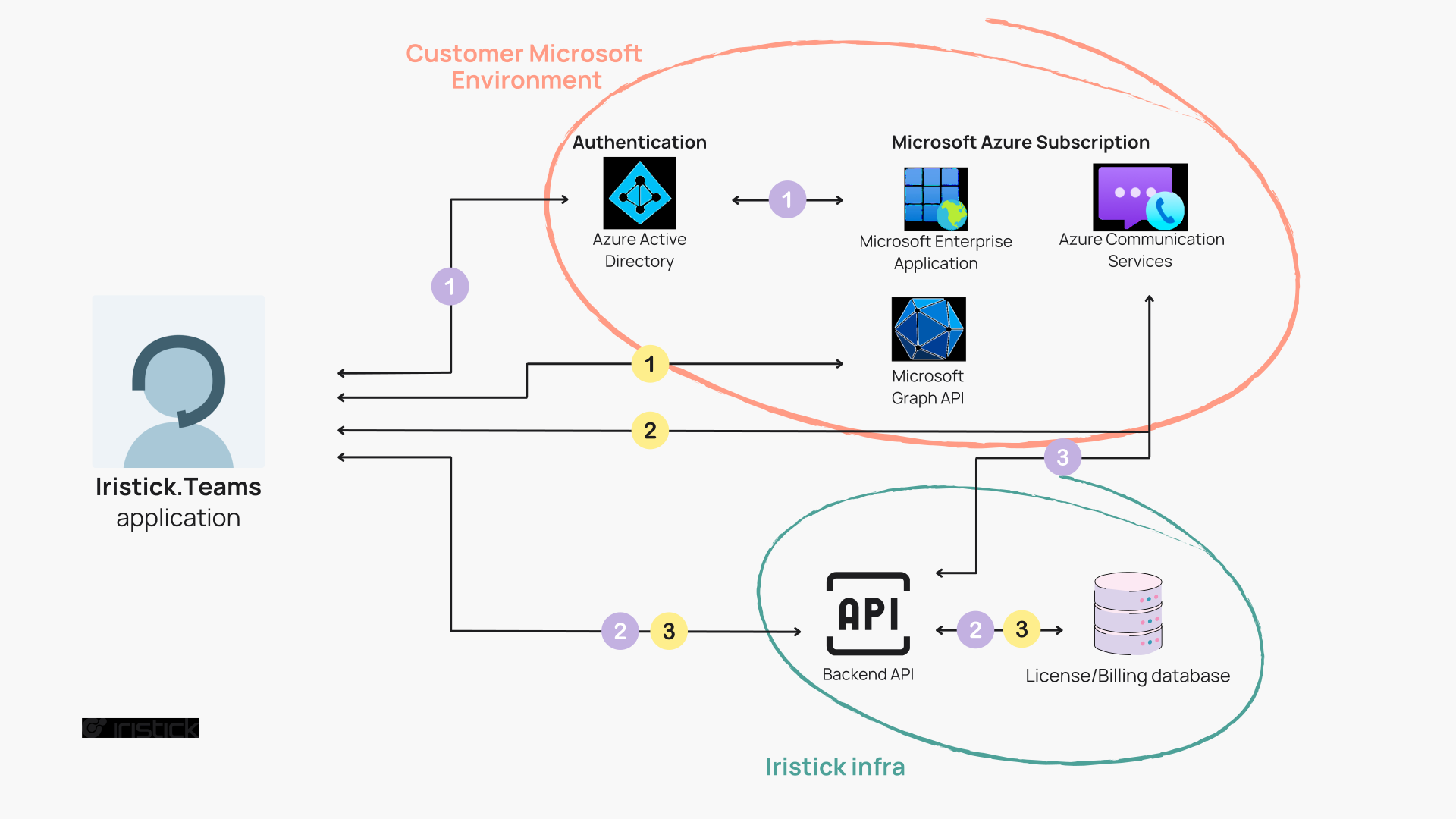
Purple numbered steps = sign in flow · Yellow numbered steps = app usage flow
Sign in flow
- The user signs in using MSAL, redirecting to Azure Active Directory via the App registration provided by Iristick.
- The sign-in token is sent to the Iristick backend API along with the hardware serial number to verify the headset license.
- If the license check passes, the Iristick backend uses the ACS resource in Iristick's Azure subscription to generate a short-lived ACS token for calls.
App usage flow
- The app retrieves contacts and meeting information from Microsoft Graph API. This data is not stored in the Iristick database.
- When the user initiates a call, the app contacts the ACS resource directly (audio and video injection). No audio or video passes through Iristick infrastructure.
- After the call, a call summary is sent to the Iristick backend API for billing purposes.
3. Why an ACS Resource Is Required
ACS is the only programmatic path Microsoft offers for a third-party app to join a Teams meeting as a participant. The official Teams client uses internal Microsoft endpoints not exposed to third parties — Iristick.Teams is a third-party app and therefore must use ACS. A Microsoft Graph token does not grant call permission; ACS calls need a separate short-lived ACS Identity token, which can only be minted by the owner of an ACS resource.
The ACS resource is a key issuer, not a data pipe. It mints tokens and provides a routing endpoint. Audio and video flow over Microsoft-operated infrastructure — the bytes never touch the ACS resource owner's infrastructure.
- OOTB: Iristick owns the ACS resource and mints tokens for your users.
- Self-hosted: you own the ACS resource and the token broker; nothing Iristick-controlled is in the path.
In both modes, call media is identical: it flows through Microsoft's ACS infrastructure, never through Iristick. Full detail: Why an ACS resource is required.
4. Service Principals Provisioned in Your Tenant
| Service Principal | App ID | Role |
|---|---|---|
| Iristick.Teams | 9e29744b-7398-4b14-8ba9-4b341b36c0b4 |
Sign-in and Graph API access |
| Azure Communication Services | 1fd5118e-2576-4263-8130-9503064c837a |
Bridges calls into Microsoft Teams |
Both are required. Admin consent to Iristick.Teams should provision ACS automatically, but in some tenants it must be created explicitly — see Section 9.
5. Permissions Requested
All permissions are delegated. The app acts on behalf of the signed-in user only, never independently. Tokens are short-lived and scoped to what your admin has granted.
Microsoft Graph
| Permission | Why it's needed |
|---|---|
User.Read |
Read the signed-in user's profile |
User.ReadBasic.All |
Look up contacts |
Contacts.Read |
List and search contacts |
Calendars.Read |
Show today's Teams meetings |
Team.ReadBasic.All |
Resolve team information for contacts |
OnlineMeetings.ReadWrite |
Create ad-hoc Teams meetings |
ChatMessage.Send |
Send chat messages via voice commands |
Chat.Read |
Display incoming chat messages in the HUD |
Chat.ReadWrite |
Read and send messages in an active chat |
Azure Communication Services
| Permission | Why it's needed |
|---|---|
Teams.ManageCalls |
Place and manage calls into Microsoft Teams |
6. Data Handling
Stored by Iristick (OOTB only)
| Data | Purpose |
|---|---|
| Display name | User identification |
| User ID | Account linking |
| Tenant ID | Organization mapping |
| Email address | Contact and billing |
| Call summary metadata | Usage tracking: initiator, duration, headset |
No call content, audio, video, or participant information is stored. All data at rest is encrypted with AES-256.
Displayed but not stored
Pulled live from Microsoft Graph and rendered in the app. Not persisted on Iristick servers:
- Recent Microsoft Teams chats
- Microsoft Teams contacts
- Today's calendar meetings
Call media
Call audio and video flow directly between the device and Azure Communication Services. They do not pass through Iristick servers.
7. Encryption
| Connection | Protocol | Notes |
|---|---|---|
| App → Microsoft Graph API | HTTPS / TLS 1.2+ | Contacts, calendar, chat |
| App → ACS (signaling) | HTTPS / TLS 1.2+ | Call setup and control |
| App → ACS (call media) | DTLS-SRTP | Audio and video encryption — see below |
| App → Iristick backend | HTTPS / TLS 1.2+ | Token exchange, license check, call summary |
| Data at rest (Iristick backend) | AES-256 |
Call media protection
Iristick.Teams uses Microsoft's standard Azure Communication Services (ACS) SDK for Android and iOS to place and carry calls, so audio and video are encrypted in transit with DTLS-SRTP — the same encryption Microsoft uses in the Teams client and in WebRTC video calling. Iristick does not implement its own media encryption; it inherits Microsoft's.
Because the app joins standard Microsoft Teams meetings, call media follows the normal Teams path: each participant's stream is encrypted to Microsoft's infrastructure, mixed there, and re-encrypted out to the others. Iristick is never in this path in either deployment — no audio or video is routed through Iristick servers.
Responsibility boundary: Microsoft owns and operates the entire media path under their Azure commitments (ISO 27001, SOC 2 Type II, GDPR).
8. Authentication
- Sign-in is handled by MSAL and redirects to a Microsoft-owned login page. Iristick never sees or stores credentials.
- Microsoft Entra ID issues short-lived access tokens scoped to the permissions you granted.
- Conditional access policies, MFA, and account governance configured in your tenant apply unchanged.
- The Android and iOS apps include the Microsoft Intune App SDK, so Intune app protection policies apply and the Conditional Access grant Require app protection policy is supported, with no device enrollment required.
- Permissions can be revoked at any time by removing admin consent from the enterprise application in the Azure portal.
Access control via app roles
Iristick.Teams declares one Microsoft Entra ID app role: User (value Iristick.Teams-User). It flows into your tenant automatically when admin consent is granted — nothing to create.
| Setting on the enterprise app | Who can sign in |
|---|---|
| Assignment required = No (default) | Any user in your tenant with a Microsoft 365 Business Basic (or higher) license |
| Assignment required = Yes | Only users or groups explicitly assigned to the User role |
There is no admin, read-only, or other role — every signed-in user has the same in-app capabilities. Use Assignment required = Yes for pilots, regulated environments, or to restrict the app to a specific department or site. Full detail: Access Control with App Roles.
9. Installation (5–10 minutes)
Prerequisites
- Microsoft 365 tenant (not personal or free)
- Global Administrator, Application Administrator, or Cloud Application Administrator role
- A test user with Microsoft 365 Business Basic or higher
Step 1 — Grant admin consent
Open in a browser and accept the prompt:
https://login.microsoftonline.com/common/adminconsent?client_id=9e29744b-7398-4b14-8ba9-4b341b36c0b4
This creates the Iristick.Teams service principal and grants admin consent for all delegated permissions.
Step 2 — Verify the ACS service principal
In Azure Portal → Microsoft Entra ID → Enterprise applications, set the filter to All Applications and search for 1fd5118e-2576-4263-8130-9503064c837a.
If it does not appear, provision it:
https://login.microsoftonline.com/common/adminconsent?client_id=1fd5118e-2576-4263-8130-9503064c837a
Or via PowerShell:
Connect-MgGraph -Scopes "Application.ReadWrite.All"
New-MgServicePrincipal -AppId "1fd5118e-2576-4263-8130-9503064c837a"
Or via Azure CLI:
az ad sp create --id 1fd5118e-2576-4263-8130-9503064c837a
Step 3 — Verify the Iristick.Teams service principal
In Enterprise applications, open Iristick.Teams (also appears as RSIQ Teams in some tenants). Confirm all permissions show Granted for [your tenant] and the app is enabled for sign-in.
Step 4 — Test sign-in
Install the app on a test device and sign in with a Business Basic (or higher) account:
- Android: Google Play
- iOS: App Store
Schedule a meeting for today and confirm it appears in the app.
Step 5 — (Optional) Restrict access
To limit access to specific users:
- Enterprise applications → Iristick.Teams → Properties
- Set Assignment required = Yes, save
- Users and groups → Add user/group → assign to the User role (
Iristick.Teams-User)
Only assigned users will be able to sign in.
10. Common Issues
| Symptom | Likely cause | Fix |
|---|---|---|
AADSTS700016: Application not found |
Iristick.Teams service principal missing | Run Step 1 |
| "Need admin approval" on sign-in | Admin consent not granted | Run Step 1 with admin account |
| Sign-in works but calls fail | ACS service principal missing | Run Step 2 |
| App stuck on loading after consent | Permissions not fully consented | Enterprise applications → Iristick.Teams → Permissions → Grant admin consent |
| Conditional access blocks sign-in | CA policy condition the phone does not meet | Review Entra sign-in logs. For "Require app protection policy", assign an Intune app protection policy to Iristick.Teams and install the broker app instead of excluding it |
| "Not a member of a group that has access" | Assignment required is on, user not assigned | Assign the user to the User role |
| No meetings appear | Meeting organizer lacks license, or not scheduled for today | Use a Business Basic+ organizer; meetings show for today only |
Full troubleshooting guide: docs.iristick.com/solutions/teams/it-admin-setup/troubleshooting/.
11. Self-Hosted Option
In both OOTB and self-hosted, call audio and video flow directly between the device and Azure Communication Services — they never traverse Iristick servers. The real differentiator of self-hosted is where ACS and the metadata backend live:
| OOTB | Self-Hosted | |
|---|---|---|
| Azure Communication Services resource | Iristick's Azure subscription | Your Azure subscription |
| Sign-in / token broker | Iristick backend | Your Azure backend |
| Metadata stored (user info, call summaries) | Iristick backend | Your Azure backend |
| App & configuration | Public Play Store / App Store | Same public apps, configured via managed configuration pushed through your MDM to the phone |
| Device management | MDM optional, phone only | MDM required, phone only. The glasses are never enrolled in either case |
| Call media (audio/video) | Microsoft ACS — never through Iristick | Microsoft ACS — never through Iristick |
Self-hosted is the choice when data residency, sovereignty, or contractual requirements mean no Iristick-controlled infrastructure may be involved — not because OOTB exposes call content (it doesn't).
Connection Flow (Self-Hosted)
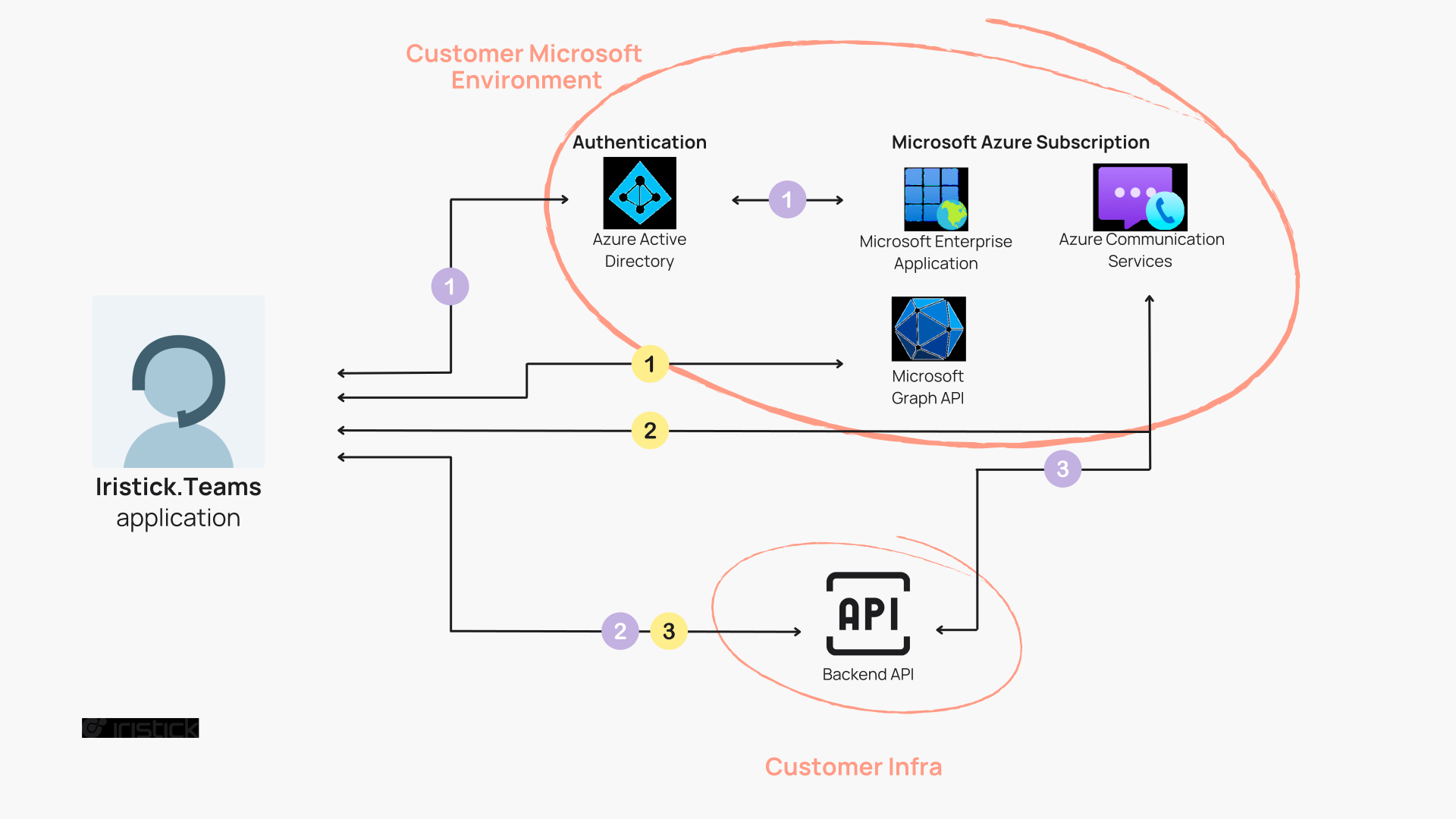
Purple numbered steps = sign in flow · Yellow numbered steps = app usage flow
Sign in flow
- The user signs in using MSAL, redirecting to Azure Active Directory via the App registration provided by the customer.
- The Iristick license check is skipped — there is no Iristick backend in this path.
- The customer's backend API communicates with the ACS resource in the customer's Microsoft environment to generate a short-lived ACS token for calls.
App usage flow
- The app retrieves contacts and meeting information from Microsoft Graph API. This data is not stored in any database.
- When the user initiates a call, the app contacts the customer's ACS resource to facilitate the call (audio and video injection). No audio or video passes through customer infrastructure — call media flows through Microsoft ACS.
Comparison: OOTB vs Self-Hosted. To request: Enterprise Setup.
12. Contact
Security review requests, deployment questions, or self-hosted onboarding: support@iristick.com.