IT Admin & Security Hub
This page is the single reference for IT administrators and security reviewers. Share this URL with your IT team — everything they need to assess, install, and troubleshoot Iristick.Teams is linked from here.
What Iristick.Teams Is
Iristick.Teams is an Android and iOS companion app that connects Iristick smart glasses to Microsoft Teams. The user signs in with their existing Microsoft 365 account, and the glasses act as a wearable camera and headset for Teams video calls. Authentication runs through Microsoft Entra ID (MSAL); call audio and video flow through Azure Communication Services.
In the out-of-the-box (OOTB) deployment Iristick hosts the backend that mediates sign-in, license validation, and call setup. In the self-hosted deployment everything runs inside your own Azure tenant — see OOTB vs Self-Hosted.
Quick Links
| Topic | Page |
|---|---|
| Permissions, data stored vs. displayed, encryption, authentication | Permissions, Data & Security |
| Install Iristick.Teams in your Microsoft tenant | Install in Your Tenant |
| Test the setup and restrict access to specific users | Verify & Restrict Access |
| Intune app protection policies (MAM) on personal or managed phones | Intune App Protection |
| Error-specific fixes | Troubleshooting |
| Run the app entirely in your own Azure tenant | Self-Hosted Enterprise Setup |
| Send to IT as a single document | Printable IT Brief |
| MDM, device enrollment, firmware updates | Device Management and MDM |
At a Glance
| Topic | Key facts |
|---|---|
| Authentication | MSAL via Microsoft Entra ID — Iristick never sees credentials. Short-lived delegated tokens only. |
| Data stored (OOTB) | Display name, user ID, tenant ID, email, call summary metadata. No call content, audio, or video. AES-256 at rest. |
| Data not stored | Contacts, chats, calendar meetings — fetched live from Microsoft Graph, never persisted on Iristick servers. |
| Permissions | Delegated only. App acts on behalf of the signed-in user, never independently. |
| Service principals | Two required: Iristick.Teams and Azure Communication Services. Both must exist before users can call. |
| Access control | One Entra ID app role (Iristick.Teams-User). Set Assignment required = Yes to restrict sign-in to specific users or groups. |
| Why ACS? | Third-party apps must use ACS to join Teams calls. ACS issues tokens only — call media flows through Microsoft's ACS infrastructure, not through Iristick. |
| Intune app protection | Intune App SDK built into the Android and iOS apps. Apply app protection policies and the Conditional Access grant "Require app protection policy" without enrolling the phone. Detail |
| Device management | Your MDM manages the smartphone. The smart glasses are a cabled accessory with no OS, account or network connection, so they are never enrolled. MDM is optional for OOTB and required for self-hosted. Detail |
Full detail: Permissions, Data & Security
Both service principals must exist before users can call
Granting admin consent should create both, but in some tenants ACS does not auto-provision. If users can sign in but cannot join calls, see Troubleshooting → ACS service principal missing.
Connection Flow
The diagrams below show how authentication and calls work in the out-of-the-box (OOTB) deployment. In the self-hosted variant the Iristick backend is replaced by the customer's own Azure backend — see OOTB vs Self-Hosted for a side-by-side comparison.
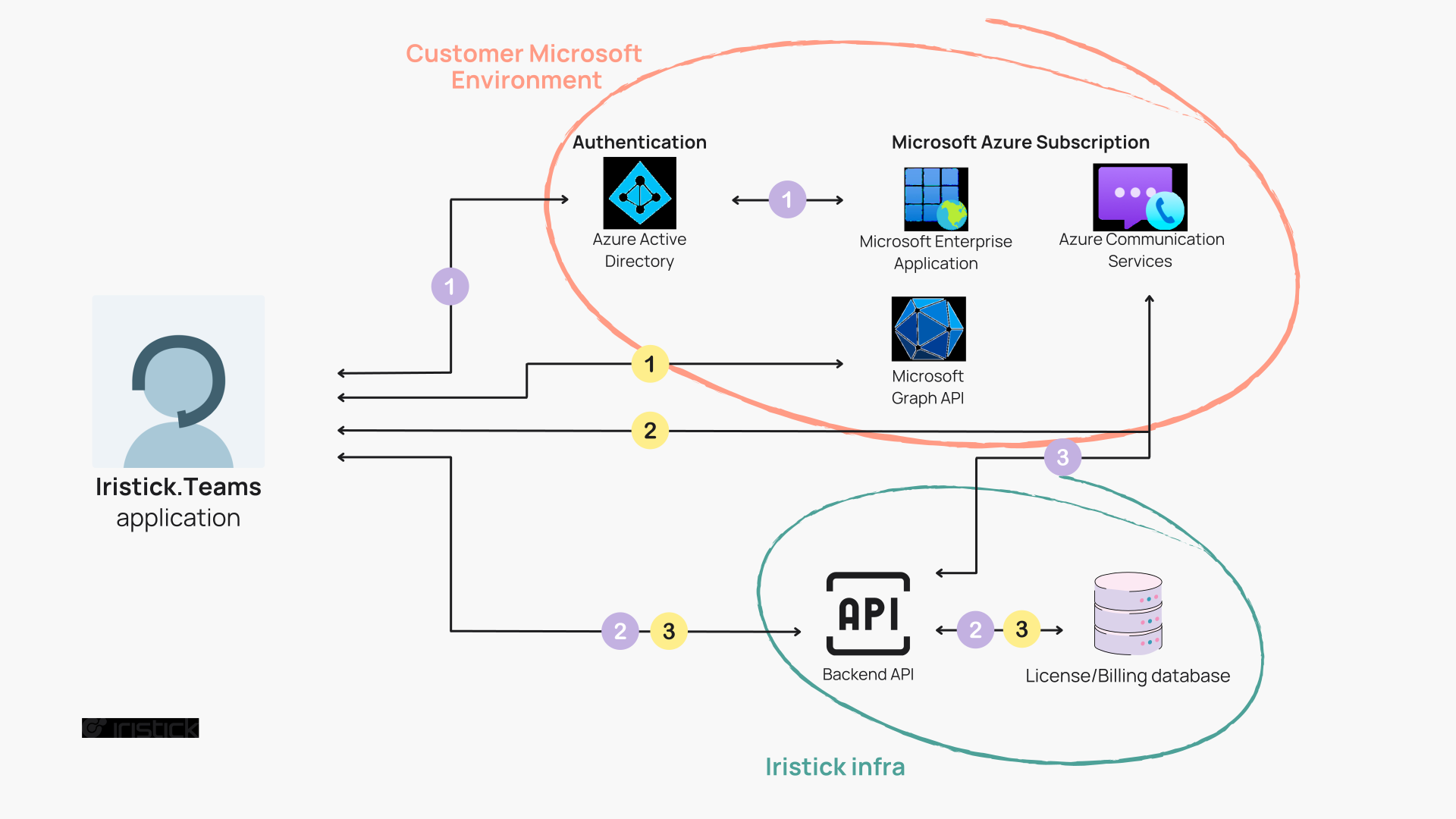
Purple numbered steps = sign in flow · Yellow numbered steps = app usage flow
- Authentication — The user signs in using MSAL, which redirects to Azure Active Directory using the App registration provided by Iristick.
- License check — The token received from sign-in is sent to the Iristick backend API together with the serial number of the hardware. The API verifies whether the headset is licensed.
- ACS token exchange — If the license check passes, the Iristick backend uses the ACS resource in Iristick's Azure subscription to generate a short-lived ACS token, enabling the user to make and receive calls.
- Contacts & meetings — The app communicates with Microsoft Graph API to retrieve contacts and meeting information for display in the app. This data is not stored in the Iristick database.
- Calls — When the user initiates a call, the app contacts the ACS resource directly to facilitate the call (audio and video injection). No audio or video passes through Iristick infrastructure.
- Call summary — After the call ends, the app sends a call summary to the Iristick backend API for billing purposes.
Before You Install
You need:
- A Microsoft 365 tenant (not a personal or free account)
- A Global Administrator, Application Administrator, or Cloud Application Administrator role
- At least one user with a Microsoft 365 Business Basic (or higher) license for testing
Personal and free M365 accounts won't work
Iristick.Teams requires a Microsoft 365 Business tenant. Personal Microsoft accounts and free-tier M365 accounts do not support the enterprise app registration this setup requires.
Install in Three Steps
- Install in Your Tenant — grant admin consent via URL (one click) and verify both service principals exist
- Verify & Restrict Access — sign in on a test device, optionally limit access to specific users or groups
- Troubleshooting — if anything fails, look up the error here
Estimated time: 5–10 minutes for OOTB. Self-hosted deployments take longer — see Enterprise Setup.
Contact
Questions or a security review request? Reach us at support@iristick.com.